Showing posts with label internet. Show all posts

Saturday, June 3, 2017

Save Data by Sharing with Bluetooth


Any way we can save our precious cellular data is welcome!

Did you know you can share between Apple devices without using the internet?  Nowadays, we tend to text or email out of habit but there is another way, especially if it's a big file (no restriction on file size).

Since Blogger quit supporting their apps, I've been frustrated with getting photos from my iPhone over to the iPad for editing and to insert into the blog (without digging out the power hungry laptop).  Recently, a friend showed me AirDrop, which transfers photos (and other data) from one Apple device to another over bluetooth.  Brilliant.  No sucking up precious gigabytes.

It's also a way to share without exchanging info ie., that sunset pic for the tourists you just met in a bar.  

Additionally, it is more secure since it is a peer-to-peer connection vs the internet.

Here's how:


Control Center

  • Airdrop ON by selecting "Contacts" or "Everyone".  (This will also turn on your Bluetooth & Wifi if they weren't already on).

The Share button

  • Go the item you want to share (a pic, a website, a contact, a note).  Press the "Share" button.


Select recipient


  • Locate their device:  There will be circles at the top (recipient's initials or the pic from your "contacts"), with a header of "Tap to share with AirDrop".  Select recipient.
  • The recipient will be prompted to accept or decline, then it is automatically saved in the appropriate place (ie. Photo goes to "Photos", Note goes to "Notes")
  • If you AirDrop to yourself (same Apple ID) then you don't have to accept.
References:
Sometimes we forget going directly to the source is your friend. 

Here's Apple's support page on the topic:

Monday, May 29, 2017

Adding a custom widget to your blog

Windy widget or gadget on the right-hand sidebar

There are widgets (or as Blogger calls them, Gadgets) available for your blog, but as sailors, some of ours are customized.  I also have a double sidebar (on the left & right) so some need resizing.

Many of your favorite websites will have HTML code for sharing a widget on your website/blog in their FAQ's (Frequently Asked Questions).  Here's a simple one to start:

Windy.com

Windy.com is a fun website showing wind & current all over the world!  (try zooming in on the Mona Passage between the Dominican Republic and Puerto Rico on a windy day.)

To get their "HTML code" you can do a Google search "Windy widget" or go to https://www.windy.com/widgets?50.067,14.383,5

Windy Widget options

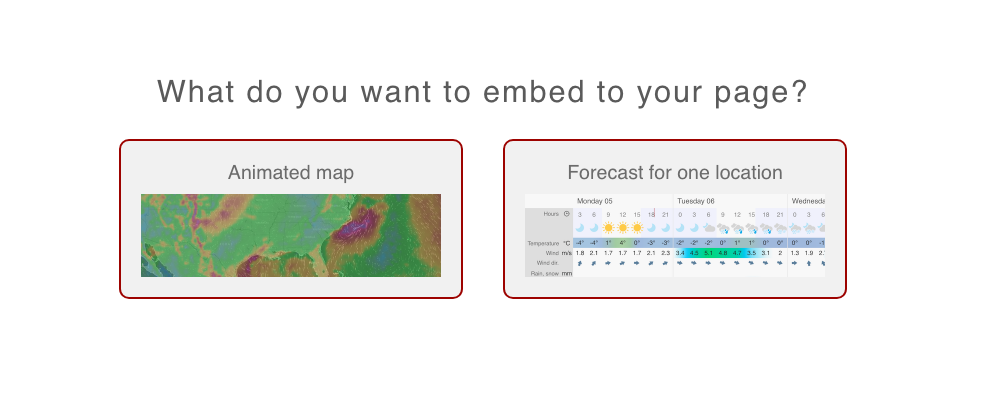
They give you the option of "Animated Map" or "Forecast for one location".  For this example, I chose "Animated Map".

Now let's adjust some settings...

  • Use the map on the right to drag then zoom in & out to find your desired location.
  • I resize to "width 200 px x height 200 px".
  • Adjust "Overlay" for wind or waves from the drop down menu.
  • Now you're ready to copy and paste the HTML code at the bottom.


I use Blogger (WordPress calls it a Widget), so: 
  • Log in at Blogger.com
  • "Layout"
  • On the sidebar, "Add Gadget"
  • "HTML/Javascript"
  • Paste into "Content"
  • "Save"
  • ("Preview")
  • "Save Arrangement"

Stay tuned for creating your own Google Maps and adding them to your Social Media or blog page.

Friday, January 6, 2017

Cheapskates on the Move, Saving Data--Offline Netflix (UPDATE: International availability)


Netflix downloading is HUGE!

As of December 2016, Netflix now allows downloading content for viewing offline.  This is huge for those of us who are occasionally offline for extended periods of time.  (NOTE:  As of Jan 2017, we have T-Mobile.  We are able to stream through our Binge On while in Puerto Rico so we're loading up for the black hole of T-Mobile coverage--USVI!)  UPDATE:  Many cruisers (including us) were under the assumption Netflix didn't work outside the US.  This isn't quite true!  Netflix is worldwide but the selection varies by country.  You may not be able to get your favorite shows, but you may be able to find something new--which is exactly what we're looking for.  It DOESN'T work in the Bahamas (unless you're using a VPN, which I believe, Netflix is on to) which is probably where we all got confused.

Netflix has an excellent help section, but I'll share some screenshots (from my iPhone) to make it easier:  https://help.netflix.com/en/node/54816

First, make sure you have the latest software update that makes downloading possible (see photo above):   App store, & click "Updates" on bottom right.  


Log in, then click at the top left...

Not all shows can be saved offline--try "Available for Download"


When you find something, it will look like this.  Tap on the arrow at the right to download

Saved offline downloads look like this

To play or delete, just tap the blue arrow

Check out the blog, cheapskates-on-move-tv-movies for info on mirroring your iPhone or iPad to the TV.


Thursday, January 5, 2017

Cheapskates on the Move, Saving Data--Offline Google Maps


Google Maps without internet

Google Maps with internet

Did you know every time you open the Google Maps app (or any other navigation app) you are using your cellular data?  You probably aren't aware, unless you've tried to use it somewhere without internet access.  For us, saving our cellular data is HUGE since it's our primary source of internet (and expensive).  One way to save money is to download Google Maps for your area.  Here's what I did this morning:

Google Maps has an excellent help section.  Here's a link to their directions but I've provided my less tech-savvy friends with the following screenshots (iPad).  You're welcome.

https://support.google.com/maps/answer/6291838?co=GENIE.Platform%3DiOS&hl=en

First pick a place:  Supposedly, our phones won't work in the US Virgin Islands, so I'll download St. Thomas in case we need to run some errands on the island...

First you need to sign in by clicking over there

Sign into your Google account (same as Gmail, Blogger, YouTube)

Select "Offline areas"

Then click "Custom area"

"Download this area?"  Click "download" at the bottom right.  (It will tell you if the file is too large and then you have to zoom in to select a smaller area).

Then "Name offline area"

Bam!  You're done.  If you are without internet (or turn cellular data off to save data) then the app for that area should still work like normal.  Supposedly, even directions work but I haven't tried it yet.


Wednesday, July 27, 2016

Cheapskates on the Move, TV & Movies (UPDATE: T-Mobile Simple, International)

Yeah!  Watching the Tour de France on Odin the Winnebago's TV!
(WARNING:  This is food for thought.  Your set up may be different.  Your local Best Buy or Apple Store will want to sell you a Roku or Apple TV.  Do some internet searching to learn what you need.)

On the boat, we rely on our vast DVD collection and the occasional download.  When we came back stateside, The Boss was excited about catching up on some TV & movies!

Both the Odin the Boat and Odin the Winnebago have an exterior TV antenna that gets us local channels.  It's a start.  Anybody have a TV Guide?

Many marinas, campgrounds & RV parks have wifi, but it may not be good enough to stream video (and if you do, you're probably hogging all the bandwidth.  Not a good way to make friends with your neighbors.)

Step one was switching to T-Mobile so we could take advantage of their Binge On that allows unlimited streaming of Netflix, Amazon, Hulu, NBC Sports, YouTube, Pandora and more without using your data allotment!  (According to Netflix, a movie or TV show can use 3-7 GB/hour!)  (NOTE:  We are grandfathered into their older Simple Choice Plan.  We pay $35/phone with a 6 GB data plan per phone & also talk, text, TETHERING and FREE international data where available {USVI, no?}--tethering may not always be available internationally depending on speed.  Their current plans don't use the term "Binge On").  Read more about Binge On and check out their channel list:  http://www.t-mobile.com/offer/binge-on-streaming-video.html

Caution:  According to T-Mobile, AppleTV, Roku, Chromecast or gaming systems may not work with Binge On.  

Step Two, connect TV to streaming device:  There are various ways to connect a laptop/iPad to a TV but my goal was to have the audio & video in one cable with the highest quality possible.

All modern televisions have HDMI inputs, and it’s currently the best way to connect any device to a TV.  HDMI delivers superior audio and video in a lightweight cable that’s easy to connect and tuck away.  

We have a Mac laptop, so the best port available for audio and video is Thunderbolt (also called Mini DisplayPort).   

Cable:  The HDMI to Thunderbolt cable we purchased was $11 on Amazon (check reviews.  Our first cord broke immediately and we had to return it).  I originally purchased a 6 ft cord but the laptop now resides next to the TV (see above).  I think I also read shorter is better as far as deteriorating video quality?  (Homework.  You can research that on your own.)

(Adapter:  If we had a HDMI-to-HDMI cord, then we could have purchased a HDMI-Thunderbolt adapter.  For iPhone/iPad, you need an HDMI cord and the appropriate Apple Digital AV Adapter, 30-pin or Lightning.  Read the reviews to make sure it will work with your iPhone/iPad model)

Step Three, set up:  Attach HDMI cable (and adapter if necessary) to TV and laptop.  Use the TV's remote to change TV input to HDMI.  You should see your laptop screen on the TV!

(Tether laptop/iPad to phone with T-Mobile Binge On access)

Sound Settings:  Your laptop may not automatically set up for sound.  On our Mac, we have to choose Apple menu > System Preferences, click Sound, then click Output.
  
Mirroring
Once the laptop is connected to your television, you should see the same window on your laptop displayed on the television. If you don't, then you should check that "Display Mirroring" is turned on.

On our Mac, we Open 'System Preferences' and click on 'Displays'. Two windows should appear, one with 'Built-In Display' (that's your MacBook's screen) and a second one for your television. Focus on the second window and click the 'Arrangement' tab. Ensure that a tick is placed in the box marked 'Mirror Displays'. The display should now appear on your television (if it still doesn't, you may need to check the connection and the settings on your television).

For your laptop, try an internet search of "(laptop name) display mirroring" or "(laptop name) & hdmi settings".

Adjust screen size/resolution:  Our main RV TV is a Sanyo 32" Wide Screen LCD HDTV.  The picture resolution is 1366 x 768.  My laptop is 1490 x 900.  Close.  I can go into Preferences then Display to adjust the resolution so it doesn't look funky.  (Check out the specs page of your owner's manual.  You can also download the manual after doing a quick internet search on how to determine what model tv you have.  It's probably on the back of the tv and may also be buried in your settings somewhere.) 

Luckily, Netflix & Amazon have increased their selection dramatically since we left the States.  Here's what we are currently watching:

Amazon Prime $99 (30-day trial.  Also two-day shipping).  You can buy or rent movies here, but these tv shows are free with Prime:  Last Man Standing, Blue Bloods, Downton Abbey, Justified, Modern Family, Bosch, Under the Dome, Grimm, Grey's Anatomy.

Netflix $9.99 for HD, free month trial.  (Check out their Low Data Use setting that can reduce to 0.3 GB/hour, if you don't have Binge On).  LONGMIRE!, Friends, Walking Dead, Orange is the New Black, Grey's Anatomy, Blue Bloods, NCIS.

Hulu:  7 day free trial then $7.99/month (limited commercials) or $11.99 (no commercials).  Rizzoli & Isles, Seinfeld.

NBC Sports, Tour de France $30 for 1-month of coverage ($1/day)

CBS Access:  $5.99/month, free 7-day trial.  Big Bang Theory, Elementary, Mike & Molly, Mom, Person of Interest, NCIS, Blue Bloods (also available on Prime & Hulu)

YouTube:  You can purchase episodes of Big Bang Theory?!  I'm not sure what else is available.  Although, The Colonel has been known to DJ from the music available here.

NOTE:  Apple Music is included in Binge On, but apparently Apple movies/tv shows aren't?  Be careful--don't get click happy.


Nerd.
Not having a remote to control the laptop was annoying until I learned a trick from my brother-in-law--wireless mouse and wireless keyboard!  Now The Colonel can control the TV from anywhere in the living area without getting up!

NOTE:  Some of the above doesn't work out of the country including Binge On (it DOES work in Puerto Rico), NetFlix (not in the Bahamas) & Pandora.  You can still download with Amazon Prime & Netflix while out of the country.  On the boat, we can use our Apple TV to watch what we've downloaded to the iPad. 

Tuesday, June 7, 2016

Cheapskates on the Move, Internet Year 1

(10/2016 Update:  Sim cards & Google Voice)

Internet, part 1 (boat):  
I consider myself pretty tech savvy, but trying to figure out internet for a boat/rv can make your head spin.  We took the $55/month unlimited, unthrottled internet at our house for granted.  I researched before we moved to the boat and decided to stay with our AT&T cellular account.  This turned out to be a mistake after we learned their coverage on the east coast was TERRIBLE.  Honestly, when we asked to borrow the phone, people just laughed. "Yeah, that doesn't work here."  I used my iPad Verizon plan to supplement (tethering to other devices not available so I was sharing an iPad with The Captain.  No bueno.  "I'm blogging."  "I'm in the middle of rewiring xyz and I need to look something up...."  "So?").  We finally bought our Iridium GO! earlier than anticipated while in the middle of nowhere ICW, NC.

AT&T iPhones:  Both of our phones were out of contract so we UNLOCKED them before departing for flexibility (otherwise you may need a mifi/hotspot).  (Check to see if your phones are compatible with other carriers, ie. quad band & GSM--most later iPhones are.  Don't take my word for it.  Additional research required). We switched to the 5GB data plan with unlimited talk & text ($25 base plan + $50), using my iPhone to tether to the iPads.  (We hate talking on the phone and no texting outside the US but there isn't a "post-paid" data plan that allows tethering, that I know of).  At some point we were up to the 6GB, but after making some adjustments (see my blog about "Using less Data" 2015/09/slow-internet-andor-using-less-data.html), we now average 1GB/week (with Opera Mini browser, if no heavy graphics/videos & no software updates).   

Before we left Brunswick, I pestered the Captain for a Wirie (ap $400 www.thewirie.com/).  It's a long-range wifi antenna (with a built in router) that allows us to get wifi while at marinas (if you would have been too far from the signal), mooring fields (sometimes the signal from the marina won't reach that far) and sometimes, while anchored.  There are, surprisingly, more unlocked networks than you would imagine, even in the US and sometimes former cruisers will set up a "guest" wifi (with bandwidth limit ie. Current Settlement, Eleuthera anchorage). Many businesses who cater to cruisers including restaurants on the waterfront, have open wifi or will share their code after purchasing a drink. The Wirie quickly paid for itself in sim cards, data plans and overages.   (Be aware of security while using unknown wifi.  I believe the Wiries has a built in firewall--don't quote me.  I use cellular data for delicate financial transactions.).  We also used it to purchase daily/weekly wifi through local networks in Georgetown and Luperon. 

International:
AT&T:  The International plan is an additional $30 for 120 MB for 30 days.  Outrageous!  But it was there if we needed it (I turned it on before leaving Luperon for Samana, "just in case.")
Also, when we left the states, we turned off one phone (a savings of $25/month) and moved the other to the minimum plan ($20/300 MB but with rollover data, we were happy to find a GB of data waiting for us when we arrived in Puerto Rico & US Virgin Islands.  At one point, AT&T told me the 300 MB was being discontinued and I wouldn't be able to get it back if I upgraded.  It's still there.)
A new plan this year that was popular with cruisers was a T-mobile plan that allowed unlimited international.  It looked expensive and I heard reports of it being spotty or slow.  It's also not permanent.  Stand by for more info in Part 2.
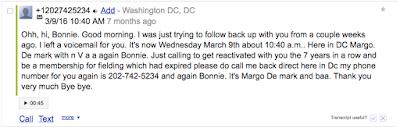
Google Voice email:  It was a sales call, so yeah, I left her phone number in there!

NOTE about SIM cards
:  Make sure your unlocked phone has a removable SIM card (otherwise you may need a mifi/hotspot)!  A SIM card adapter kit might also be helpful but we didn't need it (you can also buy a SIM card cutter but we left this to the professionals.  Every cellular store in the Caribbean was able to do this for us.)  When you swap out the SIM card, you have a different phone number!  I set up a Google Voice phone number.  Then, before removing my AT&T sim card, I forwarded the phone to my Google Voice number (for iPhone:  Settings, Phone, Call Forwarding, Call Forwarding ON, enter phone number).  I receive email transcripts when I have a message (Settings, Voicemail & Text tab, check Voicemail Notifications & add email address, then check Voicemail Transcripts).

Bahamas:  We purchased a prepaid BTC sim card data ($20 sim card & 2GB for $30 or 5GB for $50 at 4G speeds).  You can also add a few voice minutes (calling ahead to marinas for fuel/water availability).  We were impressed with the 4G coverage in the Bahamas.  Most islands had an antenna in sight of the boat!  (Included on the Explorer Charts)  It wasn't long ago the only internet was at a computer in the FBO or maybe in the hotel lobby.  (It wasn't terribly long ago that the only wifi was in the lobby of the Nassau Hilton unless you remembered your ethernet cord.  "Ethernet cord?!")  We bought our prepaid sim card in Marsh Harbour and reupped over the phone whenever it ran out (we never had any luck doing it over the internet).  The beauty is, no overages.  Use it up before the end of 30 days?  Buy another 30 days!  If I did it again, I would have paid the extra $$ and purchased the sim through mrsimcard.com, so we could check in our first night at Great Sale Cay.  However, we did found internet at Spanish Cay marina & at Donnie's marina in Green Turtle on the way to Marsh.  (There is a black hole in the Exuma's Land & Sea Park.  There are no cell towers on these islands, but a hike to the top of Boo Hill will get you a signal--or hoist the cell phone up the mast--but be sure to charge it up & turn the hotspot on first!). In Georgetown, we used the Wirie to get free wifi in a few anchorages but WiMAX, a local paid hotspot (bahamaswimax.comwas also available.  We had mixed results but ActiveCaptain.com gave it a good review.  Occasionally, we would pay for a day of unlimited to catch up on software updates (and it took ALL day).  Again, BTC (http://btcmobile.me/prepaidwas my preferred--I was on FaceBook & Twitter while sailing to Rum Cay (yes, their tower is functional.  Locals also told us it was free to log onto the wifi at the base of the tower, which was also currently the school!) and Mayaguez!  I even had a signal and we passed 10 miles off of Crooked Island.   

Turks & Caicos:  We had free wifi in Sopadilla Bay with our Wirie but I wish I had bought a Lime (also good in BVI, St Kitts, St Lucia, St Vincent, Grenada, Dominica) or Digicel (most of southern caribbean?) sim card before moving to Cockburn Harbor.  The only wifi here was standing in the marina market or the Iridium GO!

Dominican Republic:  In Luperon, we purchased weekly wifi through a local hotspot network for cheap!  Less than $10/week for unlimited, I think?  (walk into the office in town to pay and get a password).  In Samana, we had excellent wifi at the marina.  There is also a Claro store in town.

Puerto Rico & USVI (Soper's Hole BVI):  Cranked AT&T back up with some roll-over data (which also bled over to Soper's Hole BVI but be careful!  Turn off roaming, just in case)

BVI:  We went straight from Soper's Hole to Virgin Gorda so we managed to get through this area without a sim card or even seeing any local cellular stores (mrsimcard.com says Lime)

Sint Maarten:  I meant to buy a Digicel sim card (works down island) but I accidentally ended up with a Chippie (which was supposed to work in Saba, Statia and St Kitts).  However, it only worked on the Dutch side and not the French side.  (Our friends anchored on the French side, couldn't get their phone to work on the Dutch side).  I'll be asking more questions when we return.  Maybe a settings problem?  There is a setting to make it tether--ask before you leave or google it (settings, mobile network, cellular data, APN:  internet.chippie.nl or premium & leave username and password blank?).  No free wifi in Simpson Bay with Wirie.

Statia:   Our Chippie sim from Sint Maarten was supposed to work here but it didn't.  I didn't research if there were any settings I needed to change since our data was almost gone and we were getting good reception from Old Gin House through our Wirie.

Nevis:  Sketchy wifi through Da Bar with the Wirie, depending on how the boat was swinging (It's mounted on our stern.  I'd love to get it higher for better reception, otherwise networks come & go with windshifts).  I was going to stop in the Digicel store in town to buy a sim card, but The Captain thought the sketchy wifi was good enough since we were turning around.

St. Croix, USVI:  I had access to my regular AT&T plan here (not international rate), but if you pay the $20 weekly rate at St. Croix marina for the dinghy dock, you also have access to the showers & wifi password!  It was slow, even through the Wirie, but so was the AT&T so must have been a tower problem.  You can also walk to The Bistro in Gallows Bay for a frappe and a/c!

I heard about mrsimcard.com through Active Captain right before we left for the Bahamas.  I elected to wing it on my own, but since, I've heard good reviews about their customer support.  Their website is definitely a good reference for which sim cards work on which islands.  You may pay a few dollars more but everything will be up and running when you arrive.  (We always seem to anchor after-hours, on a weekend that's followed by a holiday which makes it difficult to buy a sim card.  Many places will help you "top up" but the actual sim has to be purchased at the cellular store.)

What we learned:

  • I can't tether my Verizon iPad to other devices?  Verizon blames Apple.  Apple blames Verizon.  (UPDATE:  iPads later than 4G should have this ability.  ASK BEFORE YOU LEAVE)
  • Prepaid data sim cards avoids paying for talk/text minutes we wouldn't use. No overages.  Just re-up when you're out.
  • Phone calls can be made on wifi through FaceBook's messenger app using audio only (popular with cruisers) or Skype (audio only).  Not for the technically challenged relatives.
  • Conserving your precious data!  See (the blog link under AT&T), especially with Opera Mini 
  • Don't forget, laptops have better antennas but mobile devices use less data
  • Free internet is not just at the library or coffee shop but restaurants, grocery, Target, etc
  • Bring DVD's.  There will be no streaming on a boat (Will use up your whole data plan.  Amazon & Netflix don't work outside the US without a VPN which will just make it slower!) or downloading movies
Internet is the US is more expensive ie. In the Bahamas, where internet, wifi and smartphones are relatively "new", prepaid data is common AND without out a basic plan and overages!  That's cheaper people.

RV websites are excellent places to research cellular data plans and wifi extenders.  Stand by for Part 2, RV--changes to our cellular plans and the international plan for season.  I recommend https://www.rvmobileinternet.com/, their book and their FaceBook pages.  They help me stay up to date on new equipment and the cellular companies antics.

Wednesday, May 25, 2016

Tracking Hurricanes

Hurricane season is upon us in the Caribbean.  With internet access anywhere from good to non-existent, we need a reliable source of info about possible activity.  I've received our first Atlantic Tropical Weather Outlook email, so I'll share what I have set up, then I'll update as the season progresses.

This is based on an article from The Boat Galley written in 2006, titled Tropical-Storm-Tracking-with-Sailmail-Revised-2-06.  I've tweaked it with updated info and to include references to our Iridum GO! (see blog, "Setting up my Iridium GO!")  The goal it to use Saildocs to receive text forecasts on our Iridium email (and regular email when available).  Secondly, research and bookmark links for low-bandwidth graphic forecasts for the Opera Mini browser (see blog "Slow internet and/or using less data") when closer tracking is required.

We'll start simple.  On Twitter, follow @NHC_Atlantic:  on the Iridium GO!, text to 40404: follow @NHC_Atlantic

Facebook also has several good pages including : NOAA NWS National Hurricane Center, Mike's Weather Page, Marv's Weather Service, and Crown Weather Service

Now it's time to go to saildocs.com and get familiar with their service.  The following are the send/sub requests you might need for hurricane season.

TEXT FORECASTS, Saildocs, (Atlantic):  
If you want to check my work, for current Saildocs filenames send email to query@saildocs.com:

  • send nws-gmex
I recommend the Offshore Forecast throughout the season (text):


but if you’re sitting for hurricane season, maybe:

  • Synopsis only (Carib):  send/sub AMZ001
  • Windward/Trinidad only (no synopsis!): send/sub AMZ035
The following 11 subscriptions are for tracking a tropical storm.  After the initial subscription, you only get an email when there is a change:

1.  Atlantic/Carib Tropical Wx Outlook
  • sub atl.outlook interval=1 days=365  
2.  Atlantic/Carib Discussion (gen comments/prediction confidence).  NHC monitors multiple systems so repeat for 2, 3, 4, & 5.
  • sub atl.disc1 interval=1 days=365
  • sub atl.disc2 interval=1 days=365
  • sub atl.disc3 interval=1 days=365
  • sub atl.disc4 interval=1 days=365
  • sub atl.disc5 interval=1 days=365
3.  Tropical Depression Forecast/Advisory (detailed).  NHC monitors multiple systems so repeat for 2, 3, 4, & 5.

  • sub atl.tech_advis1 interval=1 days=365 
  • sub atl.tech_advis2 interval=1 days=365 
  • sub atl.tech_advis3 interval=1 days=365 
  • sub atl.tech_advis4 interval=1 days=365 
  • sub atl.tech_advis5 interval=1 days=365

(Check at 1 hour intervals for updates:  interval=1)(Specify subscription period: days=365)
You can also get National Hurricane Center's High Seas Forecast (text):

  • send/sub FZNT02.KNHC

I recommend subscribing to the text forecasts above.  However, the following are larger graphic forecasts, so experiment then have this list standing by for when things require closer observation:

Bookmark NHC Marine Forecasts in Opera browser:  http://www.nhc.noaa.gov/marine/

Here are the 5 primary graphics from the National Hurricane Center:
GRAPHICS, Saildocs, (Atlantic).  Be aware of file size vs your data plan

  • 1.  NHC Sea State Analysis (graphic, current):  send PJEA11.TIF
Subscribe 0000Z (graphic): sub PJEA88.TIF
Subscribe 1200Z (graphic): sub PJEA90TIF

  • 2.  NHC Tropical Surface Forecast (graphic, E half, 24, current): send PYEE10.TIF
24 HR 0000Z: sub PYEE79.TIF
24 HR 1200Z: sub PYEE80.TIF
Get 48 (graphic, E half, current): send PYEI10.TIF
48 HR 0000Z: sub PYEI81.TIF
48 HR 1200Z: sub PYEI82.TIF
Get 72 (graphic, E half, current): send PYEK10.TIF
72 HR 0000Z: sub PYEK83.TIF
72 HR 1200Z: sub PYEK84.TIF

  • 3.  NHC Wind/Wave forecast (graphic, current, 24): send PWEE11.TIF
0000Z: sub PWEE89.TIF
1200Z: sub PWEE91.TIF
Get 36 HR, 1200Z:  send/sub PWED98.TIF
Get 48 (graphic, current): sub PWEI11.TIF
0000Z:  sub PWEI88.TIF
1200Z:  sub PWEI89.TIF
Get 72 (graphic, current): sub PJEK11.TIF
0000Z:  sub PJEK88.TIF
1200Z:  sub PJEK89.TIF


  • 4.  NHC Wave Period/Swell Direction (graphic, 48 HR, current):  send PJEI11.TIF
0000Z: sub PJEI88.TIF
1200Z: sub PJEI89.TIF
Get 72 HR (graphic, 0000Z):  send/sub PKEK88.TIF


  • 5.  NHC Tropical Cyclone Danger Area (graphic, current, after May 15/High Wind Sea):  send PWEK11.TIF  
0300Z:  sub PWEK89.TIF
0900Z:  sub PWEK90.TIF
1500Z:  sub PWEK91.TIF
2100Z:  sub PWEK88.TIF
(Mariner’s 1-2-3 Rule)

I also consider the following useful:

  • Tropical Surface Analysis (low res wide area, graphic, E half, current):  send PYEA11.TIF
(W half, current):  send PYEB11.TIF
0000Z (E): sub PYEA86.TIF (W) sub PYEB86.TIF
0600Z (E): sub PYEA87.TIF (W) sub PYEB87.TIF
1200Z (E): sub PYEA85.TIF (W) sub PYEB85.TIF
1800Z (E): sub PYEA88.TIF (W) sub PYEB88.TIF

Is that clear as mud?  I had to save to the blog, so I wouldn't risk losing all my notes!  I can't promise this is all accurate, but it's a start.  Please share any ideas (or point out any errors) below.  Good luck out there.


Saturday, November 14, 2015

Setting up my Iridium GO! @IridiumComm

Update Dec 2015:  Twitter Following & Private Messages, email blog to Blogger
(I am not an expert on the GO!. This was my attempt to combine eight different sources of info into one document, for my own reference. Might as well share it on the world wide web.  I will update as I learn more, so feel free to send corrections/additions.  Note to family & friends:  We only turn the Iridium on when we're on the ocean or other extended periods without wifi/cell service. It is not our primary source of communication.  For more info on the functionality available, check sv Totem's blog post:  http://www.sailingtotem.com/2016/02/iridium-go-with-predictwind-for-weather-and-more.html)


Iridium GO Cheat Sheet
The Iridium GO! is a satellite communicator that allows people "off the grid" (out of cell phone range ie. from hiking to sailing) to text and email, in addition to making phone calls.  Anyone who has ever used a sat phone knows they can be expensive and aren't easy to hold a conversation on.  The idea of being able to text or email makes the cost more reasonable (and easier for both ends to understand.).  It is also excellent for keeping family members informed of your location, and in a pinch, can send an SOS to the Coast Guard.  Cruisers use it for everything from Twitter to emailing back-and-forth to troubleshoot mechanical problems.  It is only for the tech-savvy and you still may need help from another cruiser or tech support.  (PredictWind recommends 1-3 days setup.)

Who you purchase it from, determines who your service provider/sim card is through and which plans are available.  You seldom see the GO! on sale, but the plans available vary.

Reference material (www.iridiumgo.com, then click on “Resources”):
User Manual (came in box.  I recommend also downloading an electronic copy)
Quick Start Guide:  GO! App  
(Also recommend 1PredictWind, “How-to-Set-Up-Unit-Make-Voice-Calls-and-Send-SMS-Messages”)
User Guide: (iOS or Android) Iridium Mail & Web App
& 2Mail & Web app bulletin dated Sept 26, 2014.  Especially “strongly advise iOS users to disable various apps” list  (No longer available on Iridiumgo.com, superceded by firmware 1.4.1)
(Also recommend:  1PredictWind, “How to use the iPhone/iPad email & web app”)
Advanced Portal Quick Start Guide

Record the following for your records (back of User Manual):
Serial number: (APM) (under battery or “Information”)
SSID:  IRIDIUM-(under battery then name of your wifi network or “Information”)
IMEI:  (300325)-(under battery or “Information”)
Iridium Wifi password (range 100 ft):  (default NONE) Add @ GO app, "Advanced"
GO App/Administrator password:  (default guest/guest)  Changing causes Web&Mail error?
My Iridium phone number: 8816-###-##### (all Iridium phone numbers start with 8816)
(Text 8816########@msg.iridium.com)
Iridium email app registration:  (register at www.iridium.com/mailandweb)
My Iridium email:  (username)@myiridium.net
Service Provider (______________) phone #:__________________
Service Provider email address: ___________________________
SIM card number:  ####-###-###-####-#####
My service provider account number: ____________________________
My Service Plan:________________________________________

1.     User manual:  This will help you get the unit powered up, sim card installed, and download apps.  From there, you will mostly be using the GO app on your smartphone.
2.     Firmware update:  As of this writing, it should be 1.4.1, which supposedly has some helpful upgrades.  You will need “Quick Start Guide:  Iridium GO Advanced Portal” and a laptop with internet access to download the update (www.iridiumgo.com/update).  THEN connect laptop to GO via the Iridium’s wifi.  Open browser & go to 192.168.0.1 (Administrator log in is the same as GO App)

NOTE!:  Don’t follow the Quick Start/User Manual directions in order.  I was able to set up the Go app, but had trouble with the Mail app.  I was advised to do a factory reset of the Iridium, set iPad/iPhone to “airplane mode”, then turn wifi back on, bluetooth off. Log into Iridium wifi, THEN GO TO THE MAIL APP FIRST before changing any settings and see if “send/receive mail” is working (*see below).  “Changing a lot of settings causes problems…”  It turns out that, for me, changing the username/password to the GO app means I get a “Connection status:  ERROR” in the Web and Email app.

GO! App
3.  GO App:
  •  Track: 2 kinds.  Set “Interval” (designated float plan family member), and “Quick GPS” to one-time to predefined group.  Works great.  CHARGED AS OUTGOING TEXT
  • SOS/GOES:  This took me at least 3 tries to get set up.  Registration didn’t “take” or something.
  • Text:  Set up relatively easy.  People text you by going to http://messaging.iridium.com/ or emailing 8816########@msg.iridium.com  (It costs us $0.10-0.35 to respond).  To text out, enter mobile number or email address
  • Phone call:  To call out 00 or +[Country code] [phone number] (update contacts with country code) or use country code dropdown menu.  Iridium-to-Iridium:  dial “+” 8816 ### ##### (Change voicemail to “send a text”.  $1.25/minute to retrieve?)
  • Twitter:  Set up by changing your Twitter account settings to your Iridium phone number, then logging onto the GO! app with your smartphone to complete verification. (https://support.twitter.com/articles/110250CHARGED AS OUTGOING TEXT!  You can post, but won't see your "feed."  (Hint:  To see your fellow sailors while underway, text/message FOLLOW @username to 40404 (your Iridium short code) & UNFOLLOW @username to stop.  https://support.twitter.com/articles/14020.  Also private message M @username?)
  • (Link Twitter to Facebook):  Facebook functionality doesn’t currently work (for the last year!  They blame FB).  There is a work-around by posting to Twitter and forwarding to Facebook.  (I have a personal page and a “boat” page so I completed “Connect to FB profile”, then continue to “Connect to Facebook page”.)  https://support.twitter.com/articles/31113


4.  Mail and Web App: connection speed 2.4kbps.  Uses your data plan (except Twitter)
  • See 2bulletin (Apple devices) and 3“Slow Internet/Using less Data”:  Opera “Data Savings”, disable iCloud, Dropbox, etc.  Turn off “Automatic downloads” for all apps, iTunes Match, “Find my iPhone”, disable PhotoStream, Skype, Facetime, “Location services”.  Email manual fetching only.
  • Facebook:  NEW MARCH 2016!  While on regular wifi, open Settings, Social Media then enter FB login in.  See PredictWind for full setup:  https://support.predictwind.com/hc/en-us/articles/203715910-How-to-Use-the-iPhone-iPad-Email-Web-App?preview_as_role=999999.9
  • Email button: Register for Iridium email:  iridium.com/webandemail (username is email address @myiridium.net) or “fetch” another (non-Iridium) email address ie. yahoo/gmail—be ready with POP or IMAP settings: 
  • Email settings

  • *Mail & Web settings:  “Your Account, User Name, Password” (from registering)
  • (Add non-Iridium email address:  Remote servers configuration, (click “+” to add another email address), “User name(@gmail.com), password—select Account Type to see if anything auto-populates—server address, etc {pop.gmail.com, 995, Use SSL ON.  Go to your email providers support page for settings}).
  • (Non-Iridium recommended.  See Mail & Web User Guide:  Remote Fetch Settings, Remote fetch ENABLED, Fetch asynchronously ON, Fetch # per cycle (max # emails you want per transfer).  Then “Text when mail is available” ON {enter Iridium phone number})
  • *To Receive:  “Mail”, then “Send/Receive Mail” (bottom left).  To compose: open “Mail”, “New mail” (bottom right), then “To Outbox” (top right).  (Connect to Iridium wifi), “Send/receive (bottom left)”
NOTE!:  There is no way to clear the email queue on the Iridium.  If you set up daily Chris Parker weather emails & don’t turn the Iridium on for a few months, they will all download at once (data plan limit!).  Iridium is “currently working on a solution”.  The only workaround is to create a new Iridium email account (SailMail is another possible solution.  You can log in on a laptop & clean out queue.)
BLOGGER:  Use email to post:  Go to settings, mobile & email.  Set up your unique email (username.secretword@blogger.com) & choose “publish” or “save as draft.”  To post:  Subject is post title, body of email is post with #end, attach photo (RESIZE!)  https://support.google.com/blogger/answer/154172?hl=en
  • Web button:  Opera Mini  (Apple devices per bulletin).  BE CAREFUL.  Use mobile sites or “Iridium partner” apps. http://www.google.com/gwt/n gives text version of any website. To set up Apple device, go to iPhone "settings", "wifi", select Iridium network, then HTTP Proxy "Auto".  In app, select "Web" then follow instructions for config (says Safari?). PredictWind:  "If having trouble, close all background apps (settings, general, background refresh OFF), do not have multiple tabs open in browser, kill everything (double click home button)."
  • Weather button: generic weather from NOAA GFS model.  Set location:  settings, weather, location
NOTE!:  My service provider says they calculate data used at invoicing. There is no way to "track" my data usage :-(

5.   Partner Products:  (set up to work with limited bandwidth)

  • Weather: PredictWind app (requires laptop), GRIB Explorer Plus (Chris Parker recommend)(Additional weather options):  Saildocs.com (grib) compressed email  or Chris Parker email subscription (www.mwxc.com)
  • Email:  SailMail app "AirMail"

Complaints.  Since there is no way to contact @IridiumComm support through their website, here are my gripes:

  1. Why two separate apps?
  2. Why can’t I have ONE manual?  I don’t care if I need to download it.  Just one.  (But preferably a printed manual, because we are OFF THE GRID, thus buying a SAT COMMUNICATOR!)
  3. Why so many passwords/logins?
  4. Take the Facebook functionality out of your ad.  It doesn’t work.
  5. Why only portrait mode?  Mildly annoying, but I’m not the only one.
Links:
http://www.sailingtotem.com/2016/02/iridium-go-with-predictwind-for-weather-and-more.html